Your first Console run
Run a complete spacecraft concept and learn how to tell whether its results are usable. You will load the EX06 · Evaluation baseline, validate it, watch the native calculation and inspect its engineering assessment. Keep its inputs unchanged for this first run.
Before you begin
Open an authorized Console using access and setup. This guide uses the built-in baseline and numeric evaluation; it does not require an AI provider, CAD export or a live 42 simulation. Your run ID and timestamps will differ from the screenshots. Select any screenshot to open it at full size.
1. Load an editable example
On Configure, choose Load Example, then Load Evaluation baseline. This copies the example into your workspace without changing the library or starting a solver.
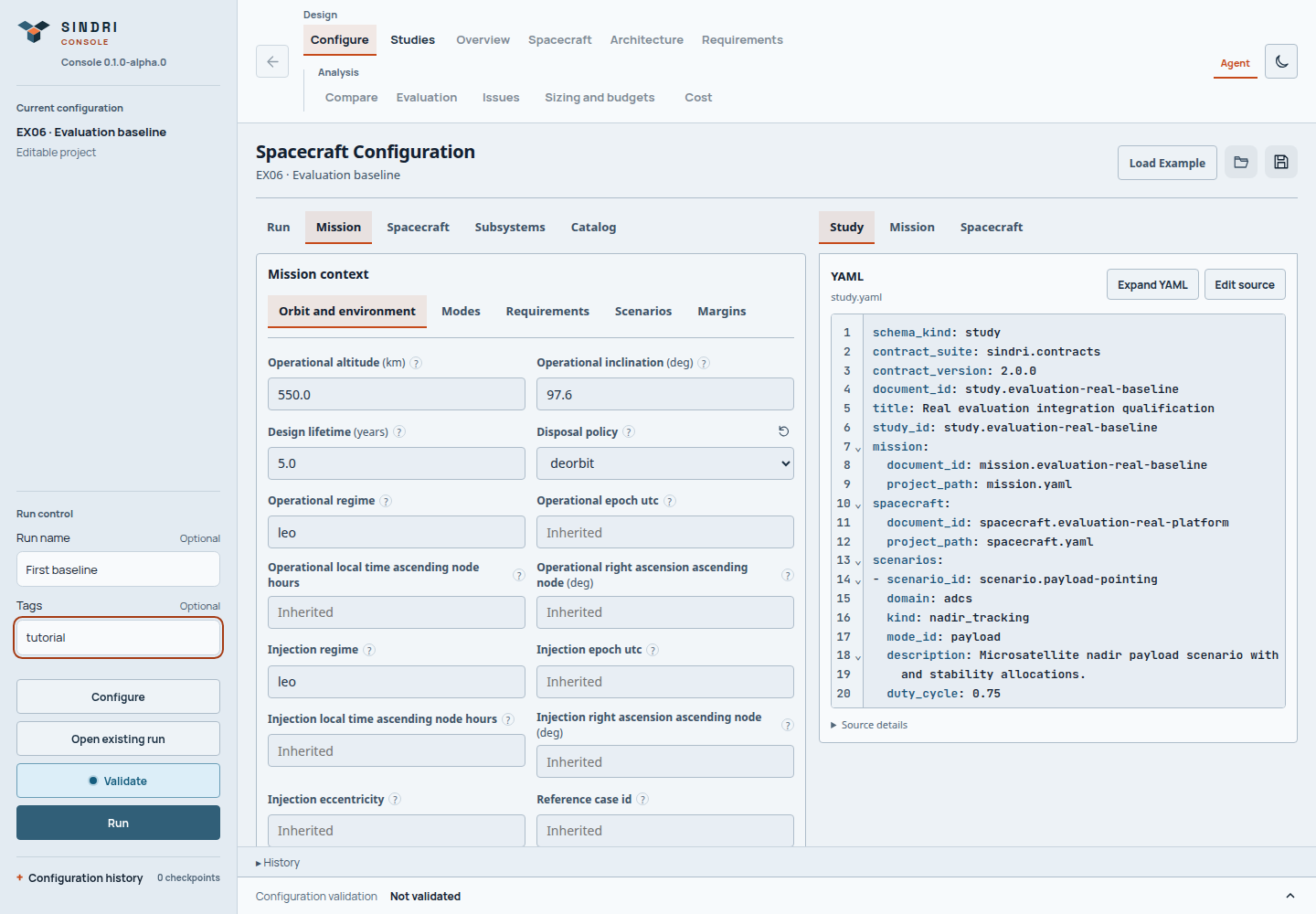
The configuration belongs to the next run. Results from previous runs retain their own captured inputs.
Use Mission, Spacecraft and Subsystems to inspect the orbit, payload and
selected hardware. Catalog explains the available hardware and topology
choices. Leave those values unchanged. Enter First baseline as the Run name
and tutorial as a tag so the result will be easy to find later.
2. Validate the inputs
Choose Validate. Inputs valid means Sindri can interpret the input documents and their resource references; it does not mean the spacecraft is physically feasible. Review any warnings before continuing. If validation reports an error, follow its field or resource diagnostic and validate again.
In the configuration's Run section, under After the run, keep Numeric evaluation enabled. Leave Agent review off for this tutorial. Numeric evaluation reads the completed engineering results and applies the configured preference policy; it does not ask an AI model to judge the design.
3. Run and follow progress
Choose Run. If Before you run appears, read the warnings and choose Run with warnings only if you intend to investigate that configuration. The bottom Run monitor shows the active stage and recorded work. Expand it for cancellation and the Stages, Log and Details panels.
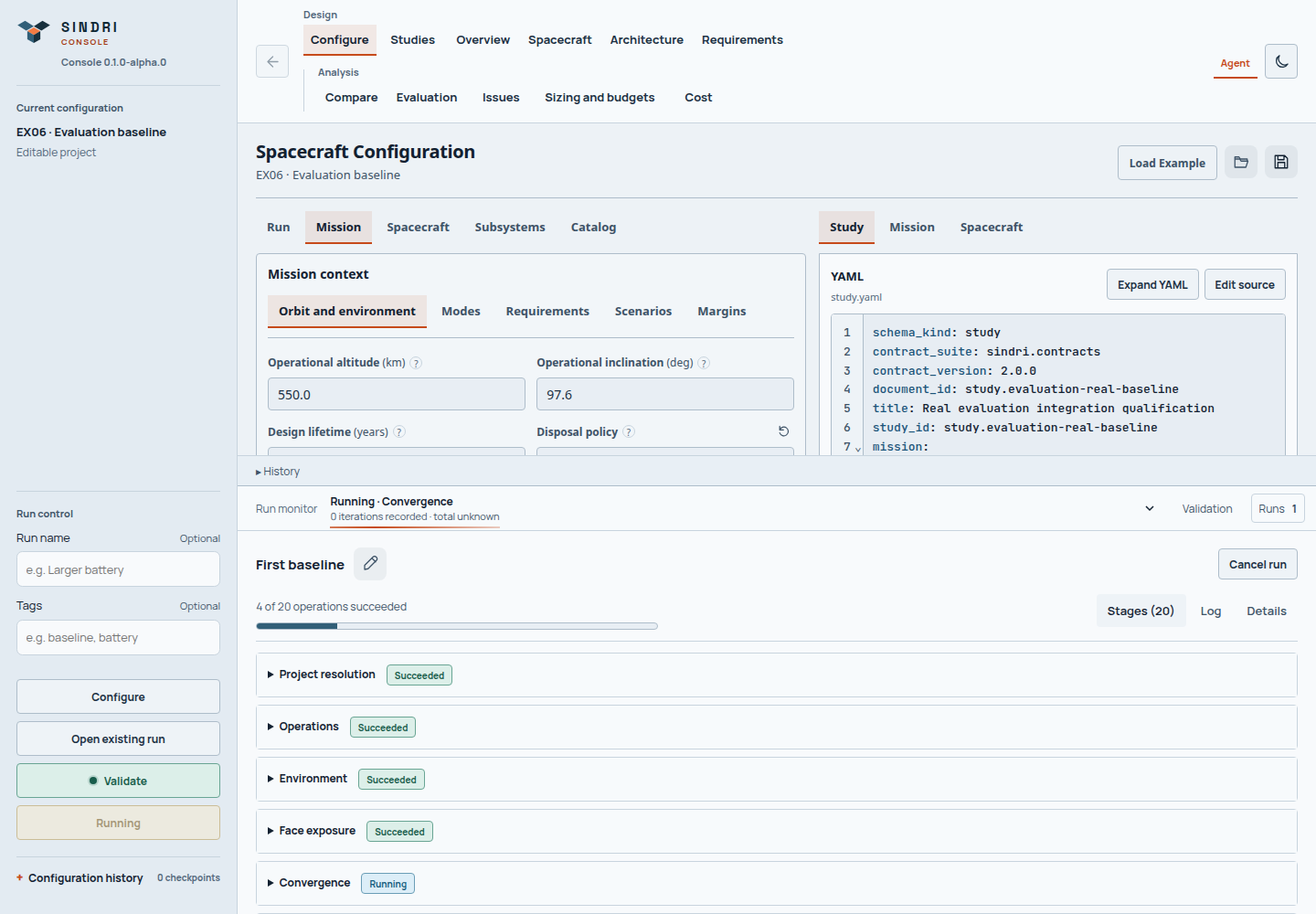
A counter measures work reported by that stage. It is not an estimate of the percentage of total running time remaining.
You can navigate while the server continues. Wait for execution and numeric evaluation to finish. The Console opens Evaluation unless you have selected another results workspace; in that case, choose the finished run's Evaluation. If a stage has no reliable total, an indeterminate indicator is expected. For a long run, use monitoring and logs before deciding it is stuck.
4. Read the outcome
Start with the engineering checks and eligibility, then examine the score. The unchanged Evaluation baseline is a complete scoring example. A score is a preference-policy result for the captured design, not a certification or a prediction of flight performance.
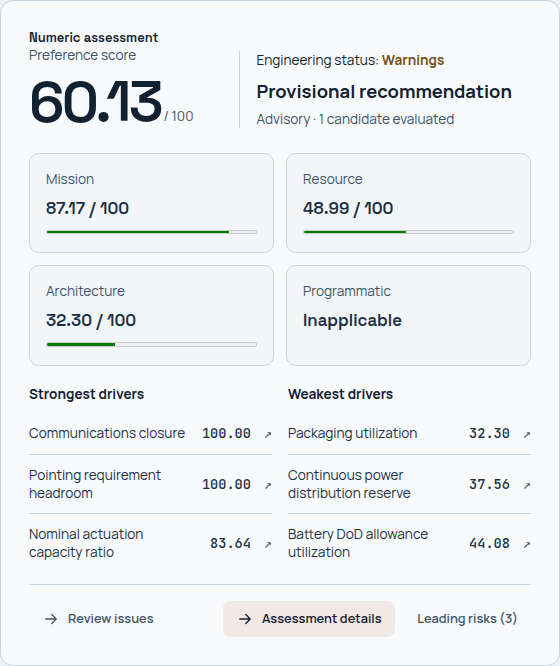
Read the checks and their evidence before using the preference score to compare designs. Edited inputs or a different runtime can change the outcome.
Open Overview, then inspect Sizing and budgets, Requirements and Issues. Follow an issue to its owning result and units. A completed calculation can still expose failed engineering checks; Not ready to score explains which required evidence or checks prevented a score. See interpret a result.
5. Find this run again
Open History and select First baseline. Its name and tutorial tag identify
the result without remembering an opaque run ID. To find bundles already stored
elsewhere, use Open existing run.
Return to Configure to edit the next design. Save a project with Save As before making changes you want to keep. Changing an input does not update the recorded result: validate and launch a new run, then compare the two assessments.
If the result differs
| What you see | What to do |
|---|---|
| Controls require authorization | Reopen the current private launcher URL or reconnect to the supplied server |
| Input/resource validation fails | Check the diagnostic and use a compatible runtime; do not change resource IDs just to obtain a pass |
| Run finishes but a score is withheld | Open the blocking checks and follow their evidence; execution and engineering acceptance are separate |
| Browser disconnects | Reconnect and inspect History or the run monitor; do not start a duplicate run just to restore the screen |
| Execution fails or is interrupted | Follow recover a run |
Next, choose another starter, make a controlled project change, or read the CLI diagnostic study to learn from a deliberately incomplete design.