Monitor progress and read logs
Follow a running study without losing your place in Configure or Results. Start a native example run, then use the Run monitor at the bottom of the Console.
Follow the current stage
- Read the active stage and status in the bottom bar. A known work total has a progress bar; an unknown total remains indeterminate.
- Expand Run monitor to see the run name and available actions.
- Choose Stages to inspect the completed and pending work. Expand one stage for its recorded detail. Choose Stages again to close that panel.
- Use Cancel run if you want to stop the calculation. Cancellation is cooperative; wait for the terminal status before assuming the worker has stopped.
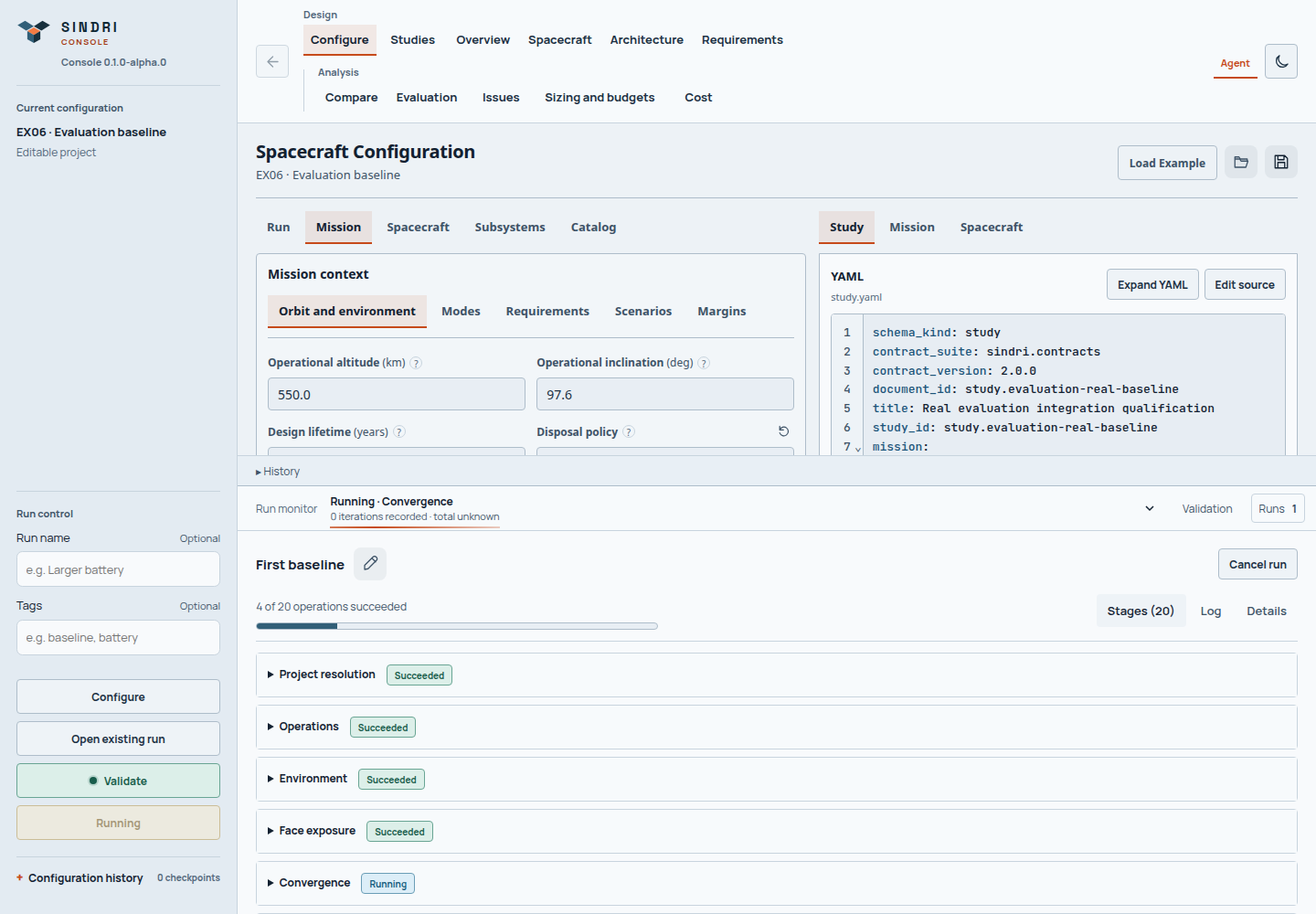
Keep the bar compact for everyday work. Open stages when you need to understand where the current calculation is spending its time.
Counts describe work reported by the solver. Stages have different costs, so half the operations completed does not imply half the elapsed time remains. Elapsed time and recent activity help distinguish a long calculation from a connection problem. Navigating or closing the browser does not cancel server work.
Read the execution log
Select Log in the expanded monitor. It replaces the stage panel and reads the worker output recorded for this run. Use it for diagnostics when a stage reports a problem; ordinary result interpretation starts with Issues and the engineering result pages.
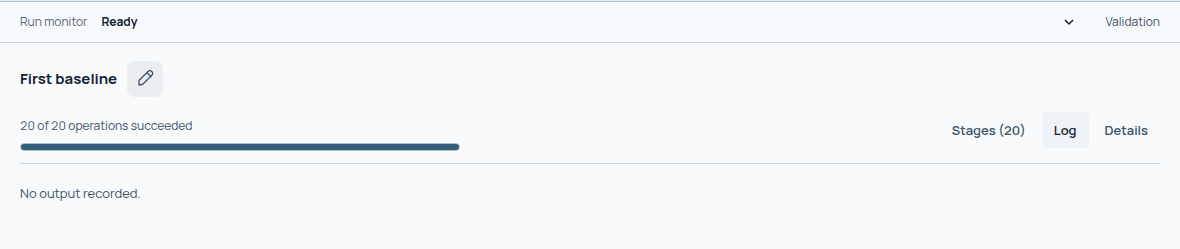
This native example produced no worker output. Stage progress and engineering checks remain available separately; the empty log is not a failure.
No output recorded is a valid empty state. An imported bundle without retained worker output has no Log control. An empty log alone does not mean the solver is idle or that the run failed. Details contains execution events and provenance; only one detail panel is open at a time.
Finish or reconnect
With numeric evaluation enabled, execution is followed by Evaluating, then Ready. Open the result and read its checks. A successful execution or saved assessment does not mean every engineering check passed.
After a connection loss, reconnect and inspect the existing run before launching another. The Runs flag appears when workspace notices need attention; open it for the affected run. Follow recover a run if the server reports interrupted execution. Command-line run control covers the equivalent status, cancel, resume and replay commands.