Compare spacecraft designs
Use a comparison to answer one engineering question, such as how a different layout changes mass, power or accommodation. Start with completed runs whose inputs and operating assumptions you understand. Inspect the physical results and checks before deciding whether a difference is useful.
For a controlled exercise, use EX10 · Topology trade: flat deck and Topology trade: spine from the Console starters. Run both unchanged and retain their numeric evaluations. Their mission, hardware, operations and requirements match while the topology policies differ. For the CLI study and recorded evidence, see EX04.
Choose the designs and baseline
- Open the intended baseline run's Evaluation.
- Select Compare with, choose another run, then select Compare 2 runs. You can include up to three alternatives.
- Verify the run names and assessment states. The picker shows evaluated runs by default; Include unevaluated also exposes runs without an assessment.
- Use Choose designs to revise the selection. Find designs searches names, tags and run IDs; Selected designs shows the comparison you are about to open.
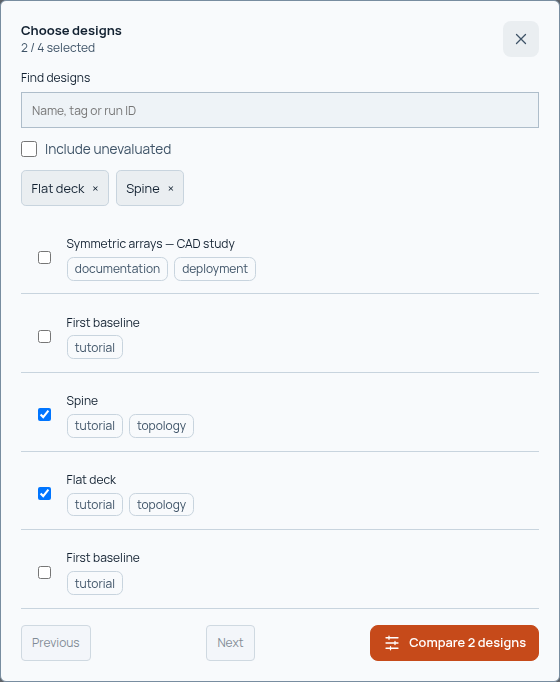
Choose two to four captured designs for one review question. Check each run's identity and assessment state before interpreting the result.
Make baseline changes the reference for numeric differences. It does not change a recorded recommendation. Edit run changes a run's display name and tags; these annotations do not change its captured design or results.
Read physical quantities first
Start with Key numbers. Each chart shows one metric with a shared zero origin and its own units. Metrics are ordered by relative spread, so the most visibly different values appear first. This order identifies differences; it does not rank engineering importance or indicate which direction is preferable.
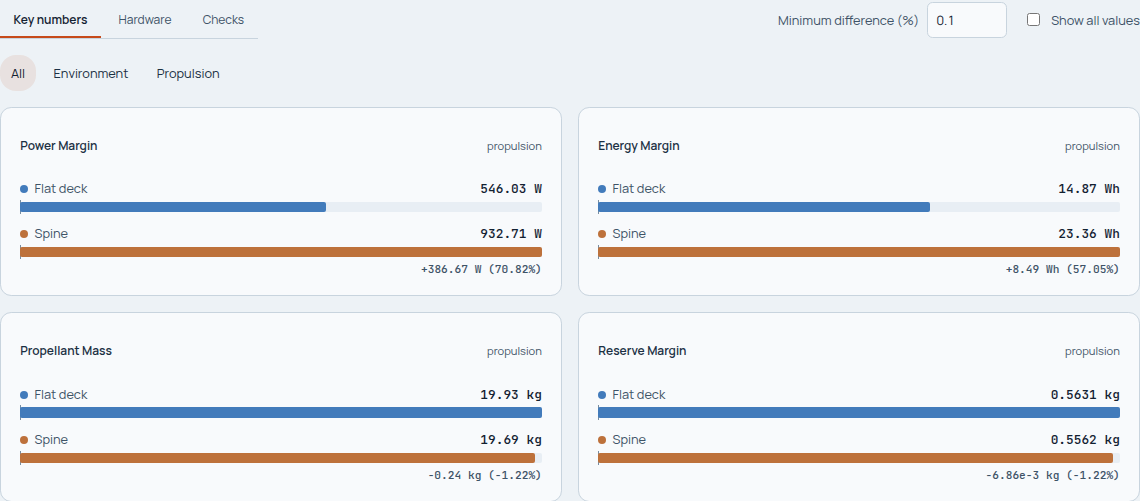
Read the value and unit before the bar length. A mass reduction and a power increase need different engineering interpretations.
Minimum difference (%) starts at 0.1. A metric appears if any alternative differs from the baseline by at least that percentage in either direction. Enter a value and press Enter or leave the field to apply it. Use 0 to see every recorded difference, or Show all values to include identical values too.
Missing values, unlike units and nonzero changes from a zero baseline remain visible because they have no comparable percentage. An empty filtered view does not establish that the designs are equivalent; the retained values may be equal or below the threshold. The filter survives refresh and a shared comparison URL.
Read related quantities together. A geometry change can affect accommodation, mass and power, while a budget improvement can leave an important requirement unresolved. Select a metric to inspect its evidence before explaining its cause.
Check the hardware behind the numbers
Open Hardware and use the subsystem filters to focus the review. Include unchanged restores common hardware when you need to understand the whole configuration, rather than only its differences.
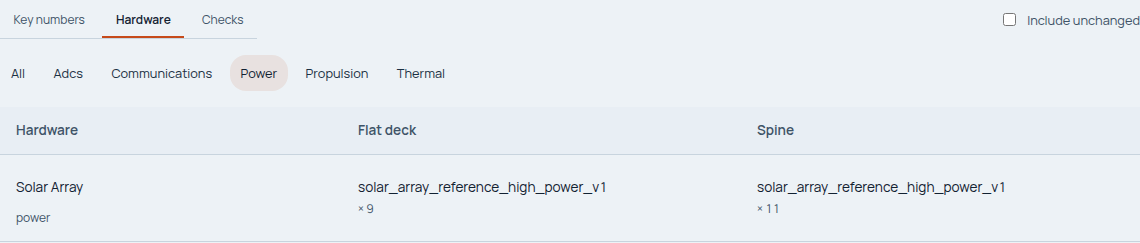
The Power filter reveals a hardware difference: nine versus eleven array units. Connect that difference to the power and area results before judging its effect.
Check the relevant result and Design used when placement or realization matters. A required capacity or area is not automatically installed hardware. For example, a scalar solar-area requirement alone does not demonstrate that the panels are placed and fit within the selected geometry. Retain those distinctions when comparing accommodation or area consistency.
Compare the checks as well as the budgets
Open Checks to see where engineering findings differ. Use Include unchanged to review constraints that remain the same across the designs. Distinguish a resolved failure from a check that could not be assessed.
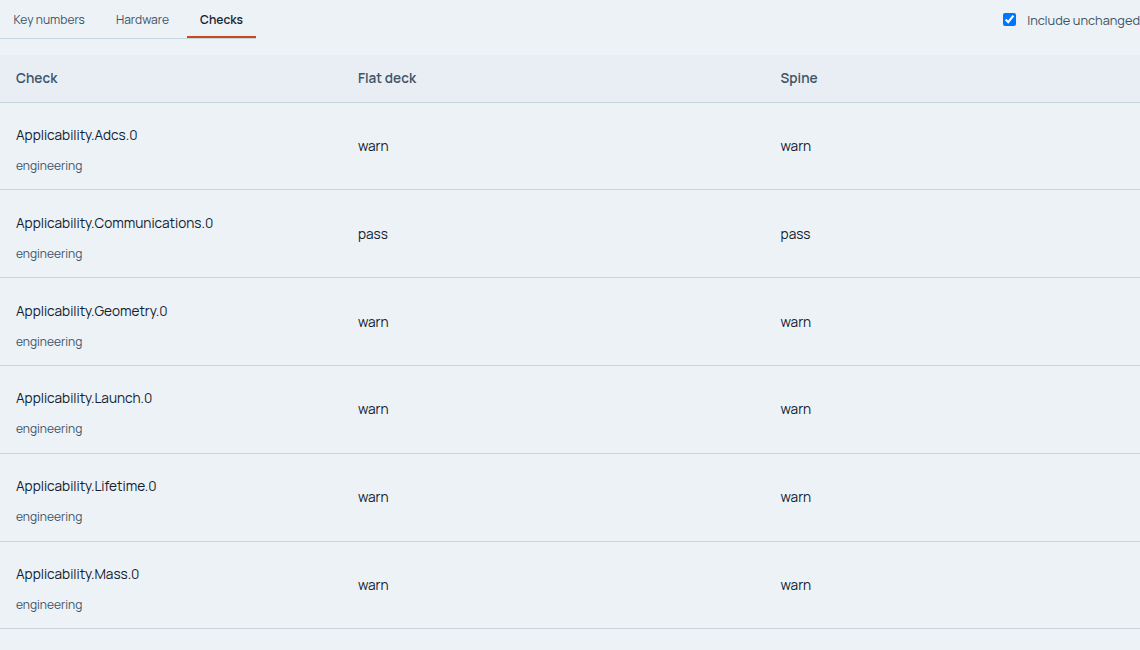
Include unchanged exposes the checks shared by the two designs as well as their differences. Read each status and its evidence; a smaller budget does not compensate for a failed mandatory check.
Missing input can make a design look artificially favorable. A known-mass subtotal is not the same as a fully resolved lower spacecraft mass. Follow Investigate an engineering issue to trace a failure or missing prerequisite before using the affected metric in a design choice.
Explain a difference from its evidence
Select a metric, hardware row or check to open its detail. Inspect Captured evidence, then use Open evidence to inspect the source context. From a finding, Open source breakdown ↗ leads to its result. Check the recorded value, units and operating condition for each design.
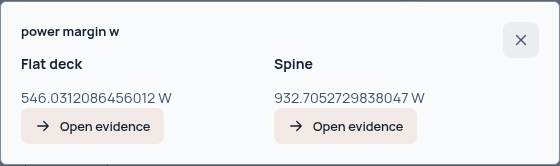
Trace an observed difference to its recorded inputs and calculation context. The comparison shows an association; controlled inputs make a causal explanation more defensible.
Use Back to restore the comparison with its filters. The design agent can help explain the trade, but keep the relevant evidence available when checking its answer.
Understand compatibility and assessment state
Different requirements, scenarios, model bases or policies can block a shared comparison, with an explanation of the mismatch. Each run remains individually inspectable. Check the input and model context before treating two similarly named values as comparable.
When only the operational orbit differs, Orbit trade exposes the changed orbit inputs and engineering differences. Its headline scores are individual saved assessments: the two orbits do not share a ranking or recommendation. You can still inspect evidence and save the comparison.
Not evaluated means the source has no recorded numeric assessment. Evaluate now assesses that design, while Evaluate missing assessments handles the missing assessments together. These actions post-process completed results; they do not rerun the engineering calculations. Unfinished runs expose View run instead. Queued assessment continues if you leave, and failures or interruptions require an explicit retry.
For a compatible shortlist, Evaluate shortlist creates a separate assessment after you select and confirm its policy. Existing assessments remain available. See evaluation for policy, score and independent-review details.
Save a review you can reopen
Choose Save comparison and give the review a name that identifies its engineering question. Open comparison returns to its retained designs and assessment versions.
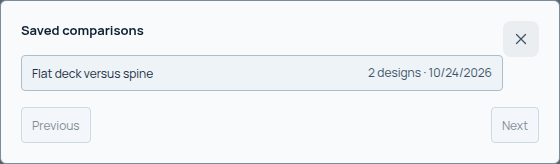
Open comparison returns to a saved review such as Flat deck versus spine. The record preserves the ordered designs, baseline and exact source and assessment versions used in that review.
A later project edit or new assessment does not silently rewrite the saved comparison. If original evidence changed or is missing, Console reports that problem. To include a later assessment deliberately, remove and reselect its run in Choose designs, then check the resulting assessment state.
Record a deliberate choice
For an evaluated pool, Accept recommendation or Choose a design records a human choice. Read Review eligibility first. Warnings require acknowledgement, and choosing another eligible alternative requires a rationale. Failed or unassessed candidates cannot be selected. The original recommendation remains intact, and an existing choice cannot be overwritten.
Selection does not approve the spacecraft or waive failed checks. Record the changed input, observed consequences and unresolved questions. Edit the project and run a new candidate when further evidence is needed.