Interpret a result
Open a completed run to understand its budgets, constraints and remaining work. You can use the run from your first Console walkthrough or open an existing run. Check the selected run's name before interpreting its results; the current configuration may have changed since it ran.
The same sequence helps when a run has warnings or partial outputs. For direct file inspection, start from the manifest and indexes.
For a visual route through hardware, tables, analyses and review, use the completed-study tour. The issues guide shows the finding and evidence controls in detail.
In the Console
- Open Overview and check the recorded mass, power and cost headlines.
- Review Needs review, then open a priority finding to see its evidence.
- Select the relevant system and inspect its detailed budgets, plots and Design used. Check units, operating case and captured hardware together.
- Read Assessment coverage before treating the available quantities as a complete design. Follow unavailable or failed results to their stated cause.
- Record the constraint and the input change you want to test. Run that change as a new design before comparing the candidates.
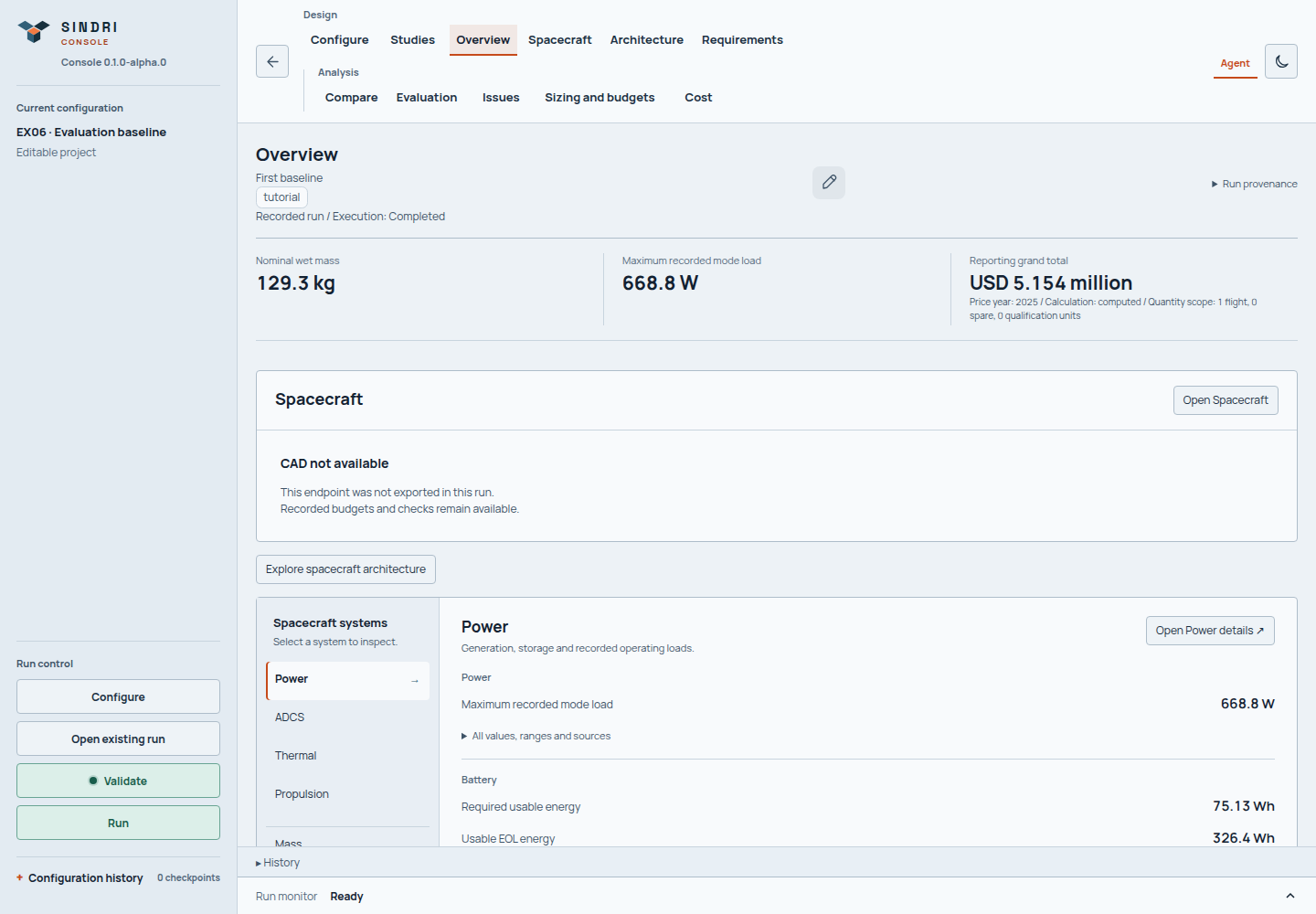
Use the headlines to orient yourself, then open a finding or system summary to understand the evidence behind it. A completed run can still expose an infeasible design.
Follow a finding
Needs review prioritizes recorded issues; it is not a list of user requirements or a spacecraft approval. It shows one priority finding per affected system, with counts for related findings and additional systems. Review finding opens the outcome and recorded values/limits in Issues, with its recorded system, component or scenario context. Use the system sidebar and severity filters to narrow the issue list, then move between findings with the adjacent-issue controls. Stable display codes and type tags distinguish requirements, checks, model limits and catalog candidates. Evidence contains the original finding ID, source fields and artifact digests; display codes do not replace canonical identities. Open source breakdown to inspect the calculation, then use Back to return to the finding. Requirements retains passing coverage and groups assessments by authored statement; a group is not an overall verdict.
Read budgets and plots
Sizing and budgets and Cost show recorded assessments and headline values. Design used identifies the captured hardware choices or system properties behind those values. Missing hardware selections are explicit: a required battery capacity or array area is not an installed component.
The main plot highlights each section's purpose: mass/cost contributions, power demand versus generation, thermal margin, required delta-v or link margin. Supporting tables, detailed plots and checks are expandable below it. Thermal margin bars show the minimum for each node across cases; hot and cold minima may have different controlling cases. Inspect exact values and contexts before combining results.
Expand Assessment coverage to distinguish unavailable, failed and unassessed results. A completed run can still fail engineering checks; a stopped run can still contain useful verified evidence. Changes to your current configuration do not update the selected run. Reload results verifies its captured evidence again.
Plots retain source units and contexts; inspect exact values or open the numeric table rather than estimating from pixels. Thermal plots show design limits after the recorded required reserves, not uncertainty bands. For example, a 35 degC operating maximum with a 5 K reserve gives a 30 degC design maximum. Use row details or Show all columns for the operating limits, reserves and additional metadata. Missing measurements remain explicit in the compact view. Generated reports remain available in the run bundle; use the interactive budget views to inspect individual values and their context.
Inspect the physical assembly
When the run includes exported CAD, open Spacecraft → CAD Inspector. Use the camera presets and zoom to inspect the geometry. Enable Transparent shell and hide obstructing parts to see the interior; selecting a part opens its properties. Stowed/deployed controls and recorded playback appear when the run contains the corresponding deployable evidence.

Interior view from the Symmetric deployable arrays study. The hidden panel leaves remain part of the design. Follow the CAD and deployment walkthrough to reproduce this view and watch the recorded motion.
Inspect a 42 execution
For a run with a 42 handoff, open Sizing and budgets > 42 verification. Recorded executions appear here automatically. To add a compatible external capture, use Link 42 results, choose a configured trusted location and link the execution for that source run. Select the execution explicitly; different executions are not combined. Run captured 42 cases can start a fresh attempt from the finalized run when a compatible local installation is configured; see the 42 workflow. Native-only runs do not show this section.
Choose Attitude response, Reaction wheels or Magnetic control, then the whole execution or a commanded mode. Mode shading represents the captured command schedule, not proof that a transition completed. Wheel RPM is available only when momentum telemetry and captured rotor inertia support the conversion. Missing channels remain unavailable rather than being replaced by zero.
Use the legend to hide individual traces and Inspect time for sampled values. Frame and channel summary provides frame definitions, source peaks and final values. Body inertial rate and command-relative rate are different quantities; nonzero inertial rate need not imply tracking error. Plot reduction preserves extrema and recorded gaps; the displayed curve is not an acceptance calculation.
Keep three outcomes separate: Execution reports the process outcome, Evidence reports source verification, and Acceptance reports engineering assessment availability. The current canonical execution contract has no supported assessment artifact, so acceptance is Not assessed, including for successful executions. Dashed limits, when present, are captured configured thresholds, not evaluated passes. Failed executions can retain diagnostic plots. Hardware and control details describe the captured case, not the current editor.
Four questions to keep separate
flowchart TD
    accTitle: Reading a result before using a budget
    accDescr: Verify the bundle, then check whether the needed result is available. Investigate missing or failed computation. For available quantities, read engineering assessments, applicability and convergence before drawing a design conclusion.
    B["Verify bundle and input identity"] --> R["Check result availability"]
    R -- "Absent, skipped or failed" --> D["Trace issues and prerequisites"]
    R -- "Complete or partial" --> A["Read assessment and applicability"]
    A --> C["Check quantities, units and convergence"]
    C --> J["State the conclusion and remaining constraints"]
A partial result may contain useful diagnostic quantities. Establish which parts are available before using them in a budget.
| Question | Record | Example |
|---|---|---|
| Did the whole run finish? | Manifest lifecycle | EX01 and EX05 complete |
| Did this calculation produce its result? | Result-index availability and envelope execution status | EX05 produces its mass, placement and launch results successfully |
| Does the result satisfy its checks? | Assessment, issues and applicability | EX05 fails the launch-width check despite completed execution |
| Did the numerical loop settle? | Convergence result and trace | Both EX04 variants converge and retain explicit engineering warnings |
The glossary defines these terms. Open the result-envelope reference for the exact fields.
Example: completed run, failed engineering assessment
In EX05, all six result operations succeed,
but check.launch.geometry.v fails. The spacecraft's stowed Y span is 0.84 m
against the declared 0.60 m launch limit. Mass properties, placement and CAD
remain available; they do not make the accommodation wide enough.
Read the actual limit, demand, margin and selected launch case. Then compare EX12 and EX13, whose only input difference is a 1.80 m width limit in the repaired example. This is a controlled accommodation comparison, not a smaller-spacecraft redesign.
When dependent assessments are unavailable
Other designs can have unresolved required hardware or construction mass. A
mass.coverage-incomplete diagnostic identifies a known subtotal; dependent CG,
inertia and launch assessments cannot use it as a complete physical basis.
Retain the bundle and trace the missing placement or sizing prerequisite. A zero
CLI exit code and a finite subtotal do not supply the missing evidence.
Before comparing or sharing
The Console Agent can explain the selected recorded evidence and link back to verified sources. Its answer does not change a result, issue, assessment or design decision. Check the cited quantity, units, scenario and modeled assumptions; a plausible suggestion still needs an explicit configuration change and a new run before it can be claimed as an improvement.
The agent uses saved run names and local date/time labels in its evidence selector and conversation. Unnamed runs use their date/time; older references without run metadata use a short identifier. Identically labelled runs receive a distinguishing suffix. Full identifiers remain under Turn details → Run identifiers for troubleshooting. These display labels do not change saved messages, evidence links or the run selected for an action; literal commands and code examples stay intact.
If Agent settings says the tab is not authorized, paste the private URL printed
by sindri console into Private Console URL and select Authorize this tab.
Use the Console launcher URL, not a provider API key. This preserves your current
page and unsent message. Local Console authorization belongs to that browser tab;
opening the link in another tab does not authorize the one already open.
Evaluate and Review design are separate confirmations. Evaluate uses the registered policy over completed evidence without running the solver again. Review design needs that matching assessment and a qualified review provider. It freezes an independent blind pass before reconciling it with the deterministic assessment. Retained findings and disagreements appear in Evaluation's advisory review; neither replaces deterministic authority nor approves the design. Failed or interrupted reviews remain explicit and require a deliberate retry. The tested OpenAI, Anthropic and Google models support both chat and independent review when their matching credentials are configured. See the evaluation workflow for the retained assessment and advisory review surfaces.
For completed candidates, spacecraft evaluation provides source-bound mandatory assessment, governed preference scores and comparable alternatives. It preserves failures and missing evidence; a score or proposal does not approve the spacecraft. Ordinary runs without evaluation artifacts have no implied spacecraft score.
- Keep the input snapshot, resource identity and scenario/state with each result.
- Compare the same quantity definition, units, lifetime point and margin convention.
- Preserve unavailable quantities and unresolved assessments in the summary.
- State which assumption changed and which inputs were held constant.
Use EX04 for a controlled comparison and evidence and limits for the distinction between reproducibility, independent validation and qualification.
If the run stopped before producing the expected evidence, follow run recovery before starting another attempt.