Work with the design agent
The design agent helps explain a selected run, compare alternatives and propose configuration changes. Keep the engineering evidence beside the conversation, open its citations, and inspect any proposed action before using it.
Open Agent in the Console toolbar. New requests need an available provider; see Access and setup if the Console reports that setup is incomplete. The examples below reopen retained conversations and an independent review from real model requests. Reading saved work does not start another provider request.
Ask about the selected evidence
- Open the completed run and the result or issue you want to understand.
- Check Run evidence in the Agent panel. It should identify the run whose captured results you want the agent to use.
- Leave Workflow on Auto, or choose Explain for an evidence question.
- Ask a specific question, such as “Which power check controls this result, and which captured values support that conclusion?”
- Read the answer together with its citations and any stated missing evidence.
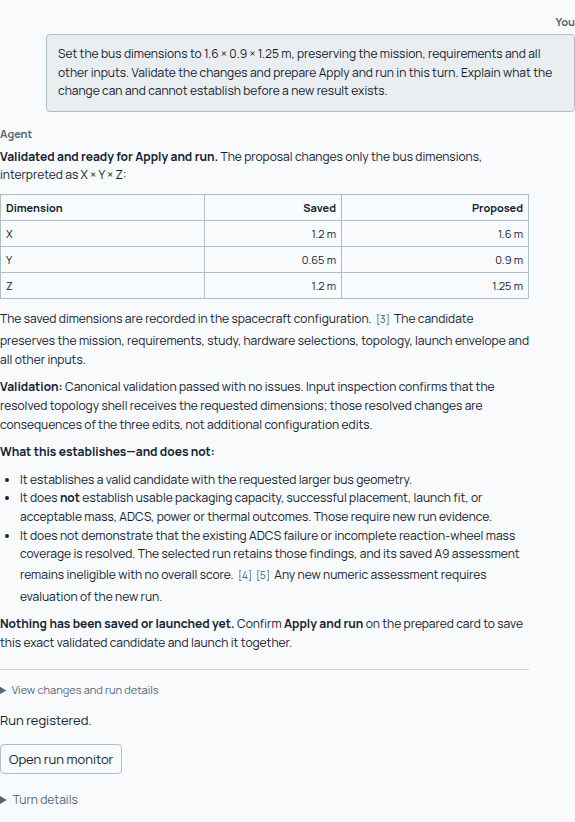
A useful answer connects a conclusion to captured values and identifies what the run cannot establish.
The illustrated conversation includes a configuration experiment. Its earlier answer records what the agent knew before application; the saved action receipt records what happened afterward. Read both when reopening an old conversation.
Use Conversation to reopen previous work, New for a separate discussion, and Rename to give it a recognizable engineering question. Project conversations belong to their project. Select the intended project before asking for a change, and verify the selected run rather than assuming it is the newest one.
Verify a citation
Select a numbered citation in the answer. Console opens the turn's references; choose the source to inspect the cited passage or captured design evidence. Back to conversation returns to the answer.
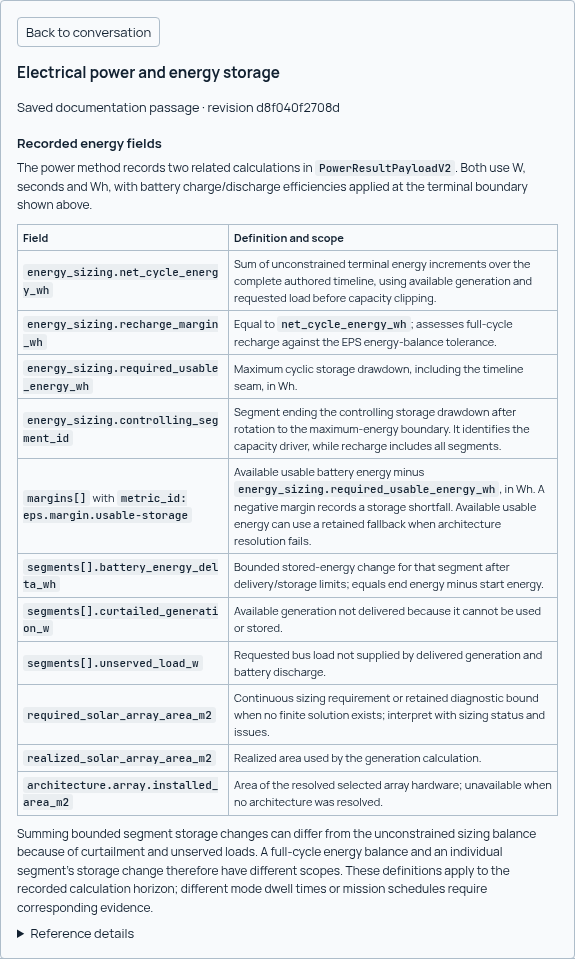
Check that the source supports the particular claim, including its units, operating condition and limitations.
The pictured citation comes from the follow-up diagnostic comparison. A Cited Sindri reference explains a method or workflow. Cited design evidence describes what the selected run recorded. Both can be useful, but a general method description does not prove that a particular spacecraft passes its check. If the answer reports missing evidence, follow that gap back to the result or Issues before using the conclusion. If an older citation reports that its source has changed, keep that warning: reopen compatible saved evidence or request a fresh explanation rather than treating it as verified.
Compare designs with a specific question
Open the comparison workspace with the intended designs, then use Workflow → Compare. Ask what changed in the inputs, what changed in the recorded results, and which checks constrain the interpretation.
Use the answer to guide inspection of the comparison, then verify the relevant Key numbers, Hardware and Checks yourself.
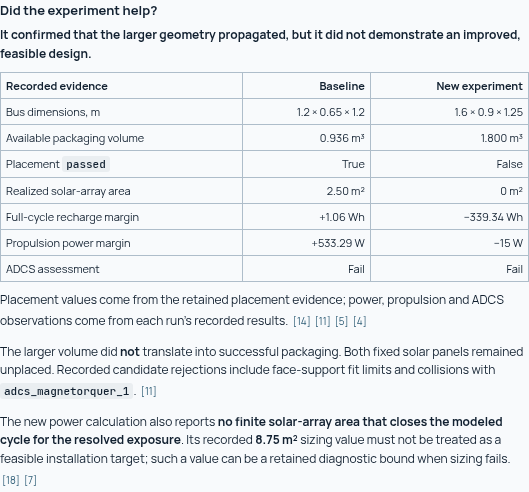
This experiment ended with failed execution, so evaluation was blocked. Its retained diagnostic results help explain what happened, but do not establish a scored ranking or an improved, feasible design.
Distinguish failed execution from a completed run whose engineering checks fail: the first can leave calculations missing or skipped. An unchanged rerun is useful for checking repeatability; it is not an improved design. Equal displayed results do not prove that every input is equal, and a changed result does not establish that one edited input is its sole cause. An orbit trade changes operating assumptions, so individual scores do not establish a shared ranking across the two orbits.
Inspect a proposed configuration change
Save the intended project, select Workflow → Configure, and state both the desired change and what must remain fixed. For example, ask for a power-storage change while retaining the mission and requirements. Request requirement or threshold changes explicitly, using the corresponding checkbox only when that is your intended task.
Open View changes in the proposal, or View changes and run details for a combined run request, and check:
- Validation: whether the proposed inputs passed validation.
- Files: which documents would change.
- Requirements: whether requirements remain unchanged.
- Changed inputs, when available: the practical design differences.
- Why these changes: the recorded rationale and assumptions.
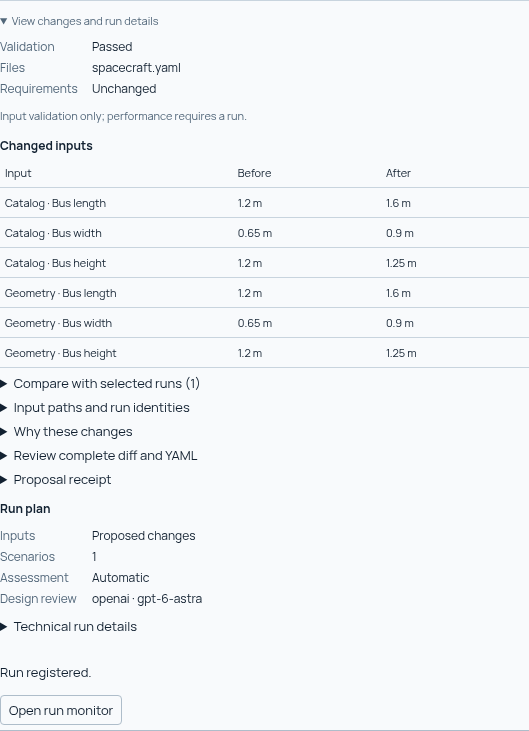
This real retained proposal has already been applied. Its saved details show what was reviewed and validated; they are not a pending approval request.
Passing input validation means the proposal is structurally valid. It does not establish engineering performance, solver convergence or compliance with the requirements. Those need a run and review of its results.
Read the actual changes
Expand Review complete diff and YAML. Inspect the changed fields and open the complete proposed study, mission or spacecraft document when surrounding context matters. Check units, resource choices and requirement changes rather than relying only on the summary.
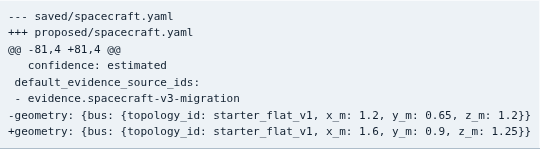
Scroll the diff horizontally to inspect long lines. This excerpt shows the changed X, Y and Z values at the right-hand end of the spacecraft diff. Read the complete diff and surrounding YAML before applying a new proposal.
For a new pending proposal, the apply control saves the change without running it. A combined run request offers Apply only and Apply and run, so you can choose whether to launch its run as well. After a change has been applied, Run saved design can launch the saved configuration when offered. Review the Run plan before confirmation. If Console reports unsaved edits or a changed project, resolve that state before applying the proposal.
Follow the exact run returned by the action. Once it completes, compare its checks and results with the original run. A completed action or simulation is not itself evidence of improvement.
Read an independent engineering review
The saved Independent review in Evaluation is a separate review process from ordinary Agent conversation. It first examines evidence in a fresh context without the numeric score, preserves that blind first pass, then reconciles it with the matching numeric assessment.
The review screenshots below belong to a separate completed-run example with a numeric score of 61.71. The bus-size experiment above remains failed and unscored.
Start with Key concerns, then open 1 · Blind review. Expand Evidence and uncertainty to inspect the supporting references, uncertainty and confidence. Each finding also records a recommended action.
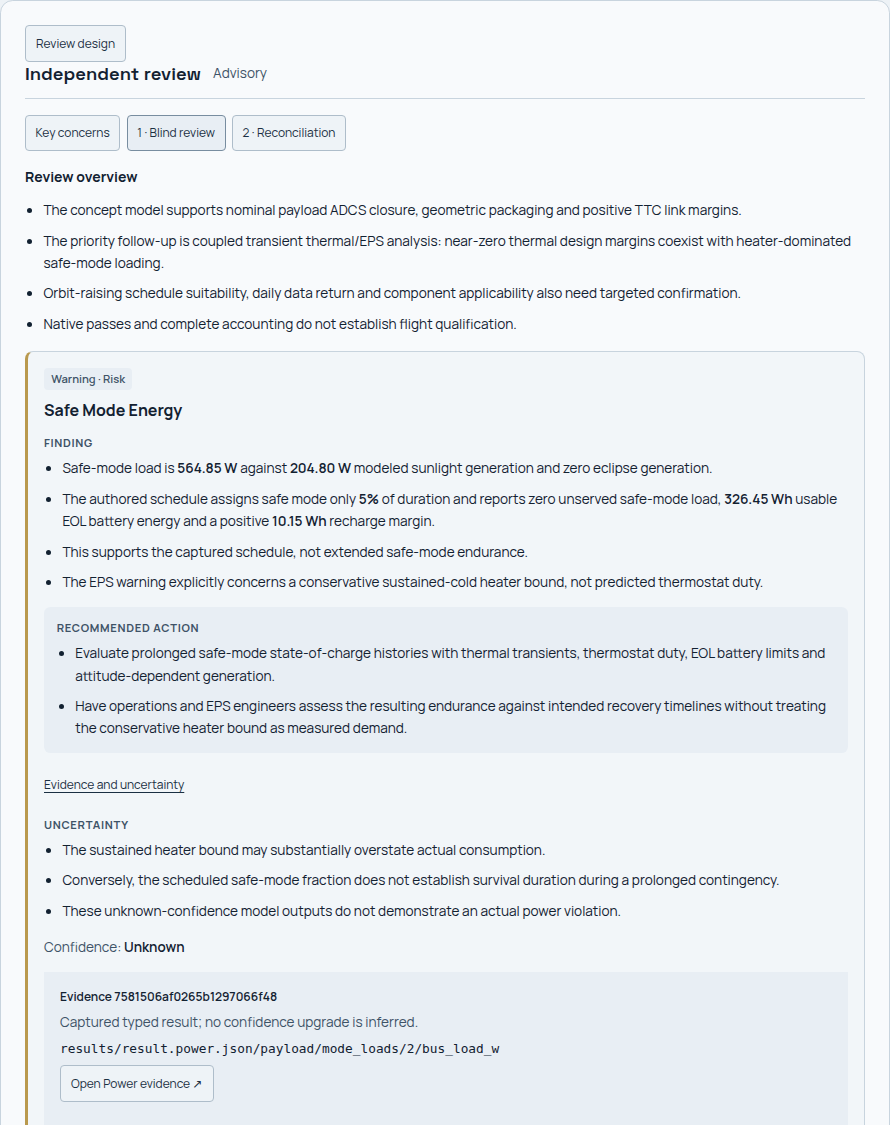
This excerpt shows the first blind finding, its uncertainty and its first linked source. The original pass remains available after reconciliation.
Open 2 · Reconciliation to see agreements, corrections, disputes and unresolved points after the assessment was disclosed. Open Details and evidence for the assessment context and supporting references. Follow the reasoning and evidence behind a disagreement rather than treating either the reviewer or the numeric score as an automatic verdict.
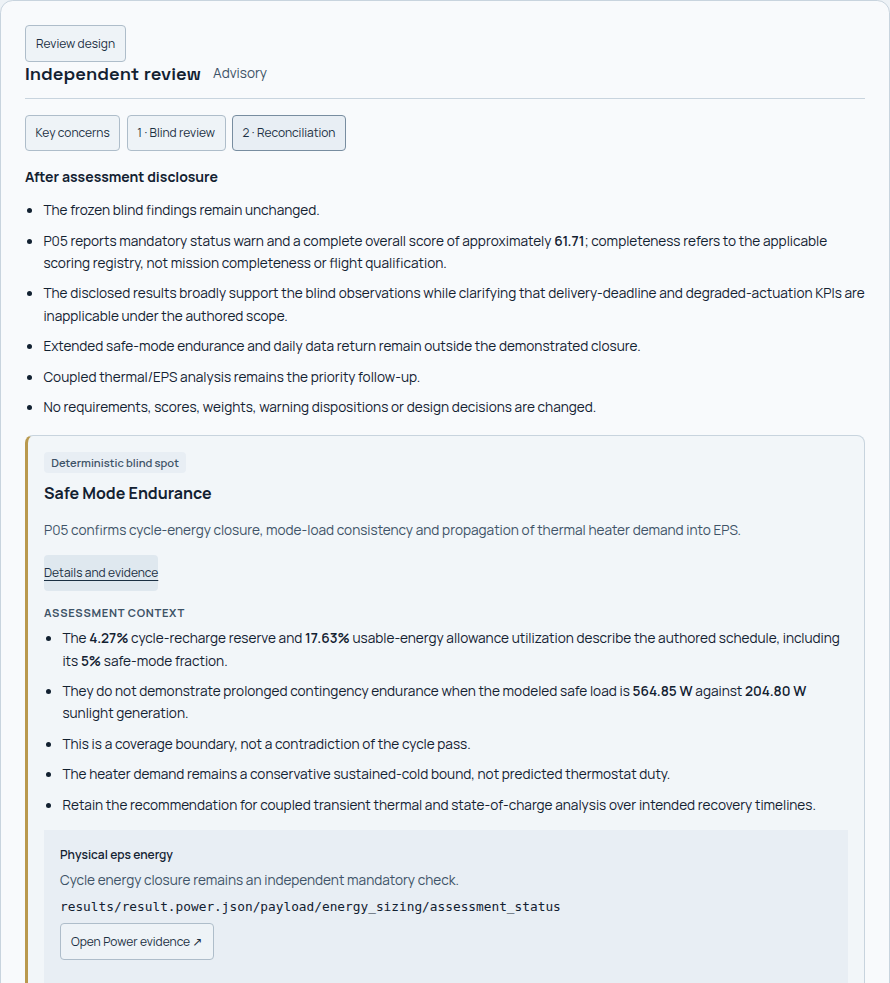
This excerpt shows the same safe-mode concern after assessment disclosure, including the first linked check. Reconciliation preserves the blind findings and does not rewrite the deterministic checks or score.
These findings are advisory. They do not approve the spacecraft or waive a failed check. To start a new review, follow Request an independent review, including its provider choice and evidence-transfer confirmation.
Resume work without losing context
Reopen the saved conversation and inspect the proposal or action receipt before repeating a request. Follow an existing linked run when one was already launched. Interrupted actions expose their state and recovery controls so you can resolve what happened without blindly submitting the same work again.
Stopping an agent turn does not stop a simulation it already launched. Use the run monitor for simulation control, and the review's own cancellation control for an independent review. Retain the original evidence and compare a new run whenever the design changes.