Evaluate and compare spacecraft candidates
Use evaluation to check whether a completed design is eligible for scoring, understand its strongest and weakest categories, and compare alternatives under the same assumptions. Engineering checks come first; a preference score does not approve the spacecraft.
Begin with your first Console run or open a completed run. Evaluation reads that run's captured evidence and applies a versioned policy. It creates a separate assessment without rerunning solvers or changing the design.
In the Console
- Open Evaluation for the selected run. Verify its name and engineering status before reading the score.
- If it has no assessment, select Evaluate now and confirm the displayed policy.
- If scoring is blocked, use Inspect checks and the source findings to identify what needs attention.
- Inspect a category and its controlling metrics. Check recorded values, units, contribution and evidence before explaining the score.
- Use Compare with when another completed design is available. Start with matching requirements and operating assumptions so the comparison has a clear meaning.
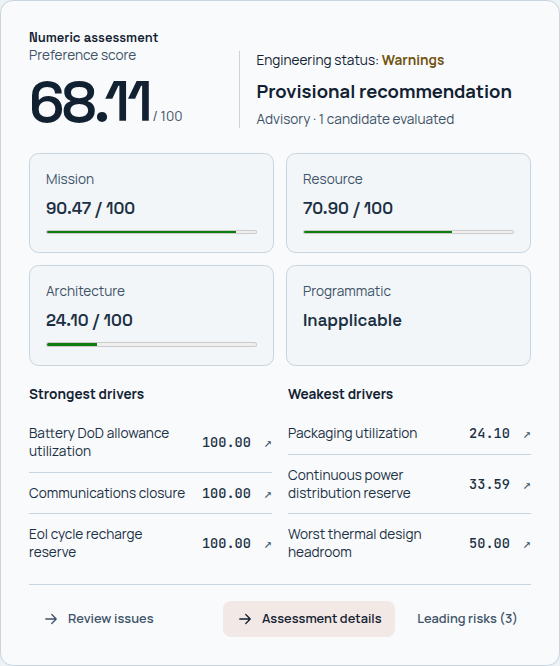
Read engineering eligibility before the score. Category contributions explain preference; the recorded checks establish which constraints still need attention.
Evaluation after a run
On Configure, After the run → Numeric evaluation is on by default. Run the design normally: the server evaluates its completed results using the approved spacecraft preference policy, then opens Evaluation unless you have selected another results workspace. The monitor progresses from Running through Evaluating to Ready. Closing the browser does not stop assessment. These settings are saved for the project and captured with each launch; switching the option off leaves evaluation as a manual step.
Agent review defaults to off. To request it for future confirmed runs, select the option, choose the displayed provider and model, read the evidence-transfer notice, and select Enable post-run review. Once the numeric assessment is saved, Console starts one blind evidence review followed by reconciliation with that assessment. The selected model must have completed review qualification and have credentials configured. If setup is incomplete, numeric results remain available and review waits for Start review after setup. An old saved preference alone does not authorize a provider request.
Review has no automatic retry and does not rerun the solver. Cancel review only stops that work while retaining the run and numeric assessment. Failed or interrupted reviews require Retry review explicitly. Numeric evaluation alone does not create an independent review. Failed engineering checks or missing evidence can withhold a score even when assessment completes successfully.
Inspect an assessment
Follow the assessment from eligibility to score, then from score to evidence. Assessment details brings together Scores, Checks, Risks, Policy and Sources. A displayed score belongs to the captured run and policy; it does not describe unsaved edits in Configure.
Resolve blocked or incomplete scoring
When the main card says Not ready to score or Score incomplete, read the controlling findings first. Inspect checks retains every mandatory check, including dependent failures. Inspect missing inputs helps identify absent prerequisites. A missing value never becomes a zero score or a passing check.
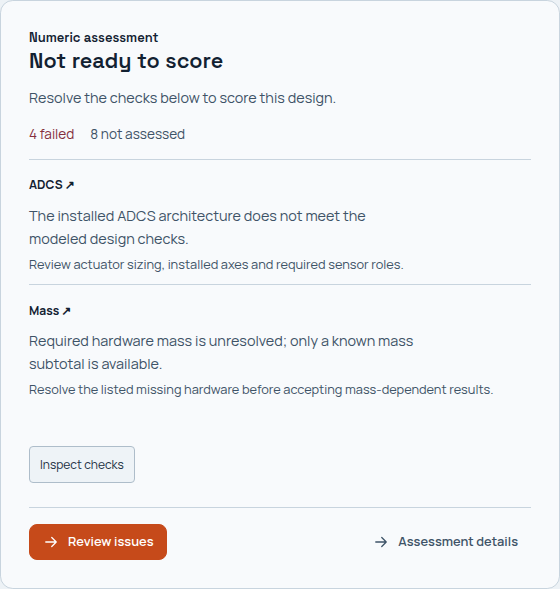
An assessment can finish successfully while withholding the preference score. The next step is to resolve the recorded engineering or evidence problem.
Identical issues propagated across subsystems appear once in the main card; select a subsystem to inspect its evidence. Review issues opens the run's findings, while Requirements retains assessment coverage. For example, unplaced solar panels prevent an area-consistency assessment: the prerequisite must be resolved before comparing requested area with realized geometry. Existing saved assessments retain their original checks and scores. Use the issue investigation guide to trace a finding to its source.
Follow a category into its controlling metrics
Select a category to open its score details. Read the category score, contributing metrics and any recorded cap. A category's preference score expresses the policy's tradeoffs; it is separate from the engineering status of the design.
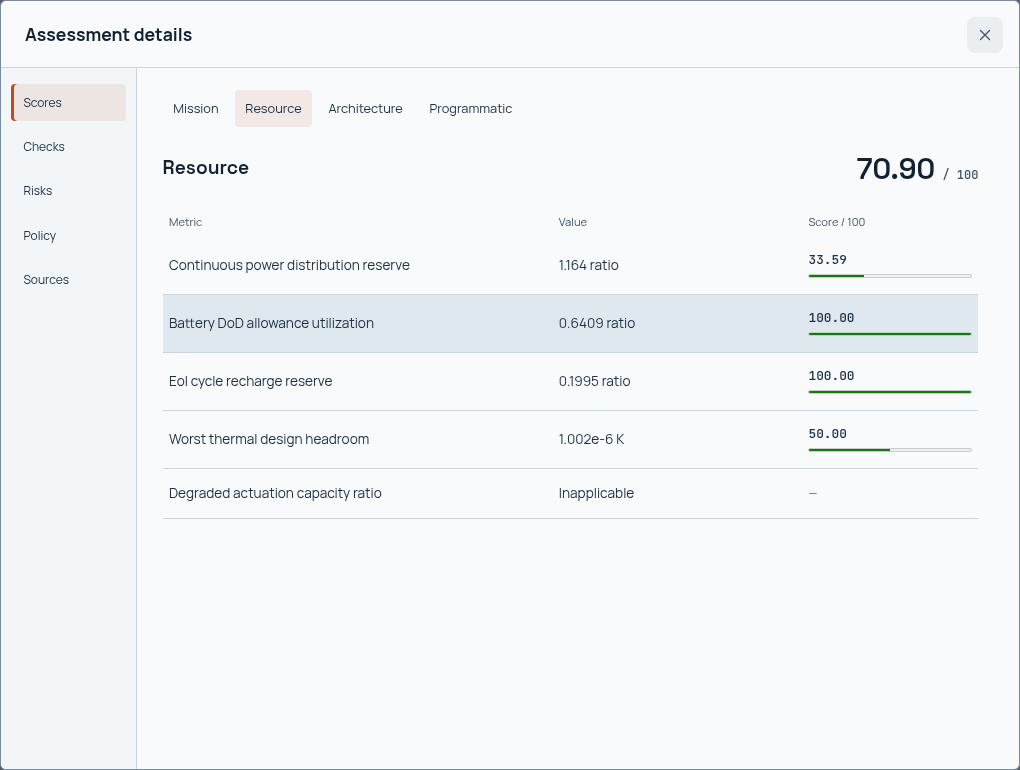
The category view explains which metrics contribute to the result. Check the policy and evidence before interpreting a larger contribution as an engineering improvement.
Select a metric for its recorded value, units, preference score and contribution. Read the physical value first. A normalized preference score only has meaning with the rule that maps the value onto that score.
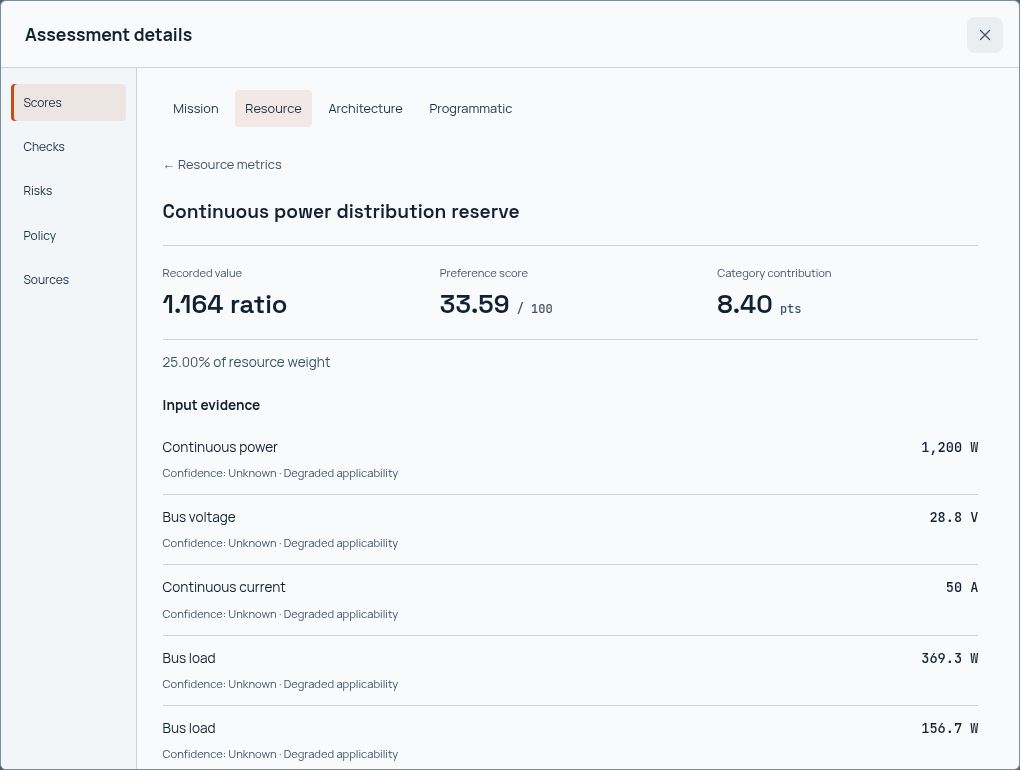
Trace the score back to a physical value. The value and the policy's treatment of it answer different questions.
Open Evidence to inspect the calculation notes and exact field references. Check the operating condition and any stated limitations before using a metric in a design decision. Advisory and deferred metrics remain available under Supporting metrics; their presence does not imply that they contribute to the headline score.
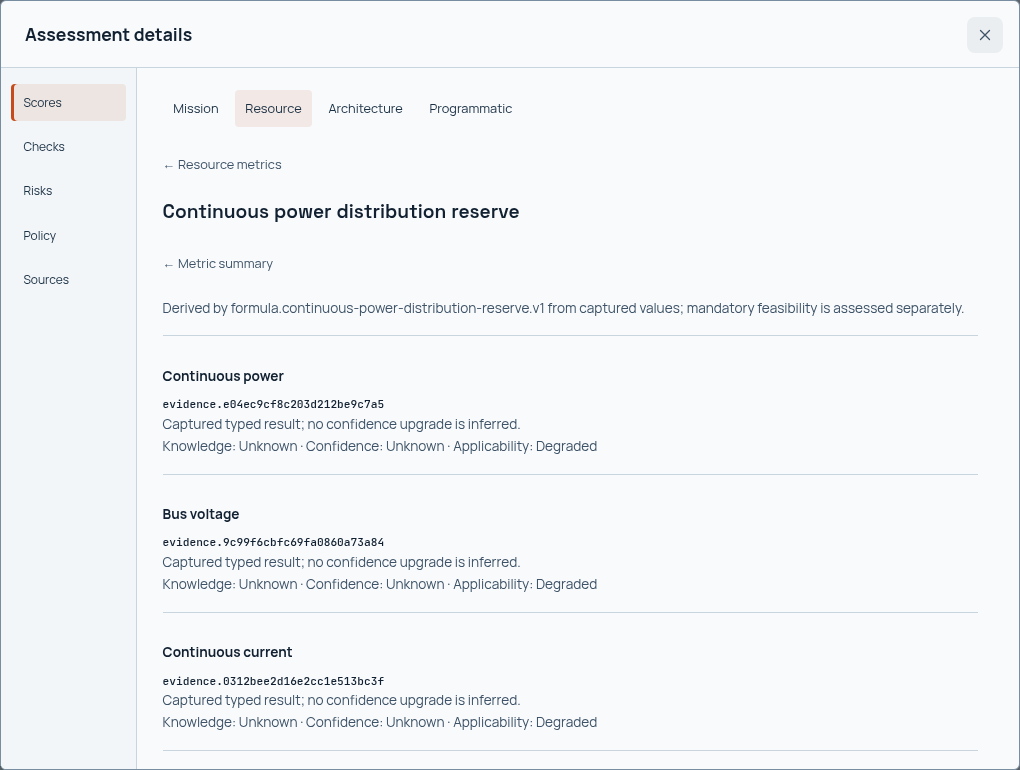
Use the evidence to establish where the value came from and what it covers. A label or score alone cannot establish those boundaries.
Check the constraints and risks
Open Checks. Start with Needs attention, then switch to Passed to review the checks that already have supporting evidence. Select a row to inspect its explanation and references. The Risks view connects recorded leading risks to their checks.
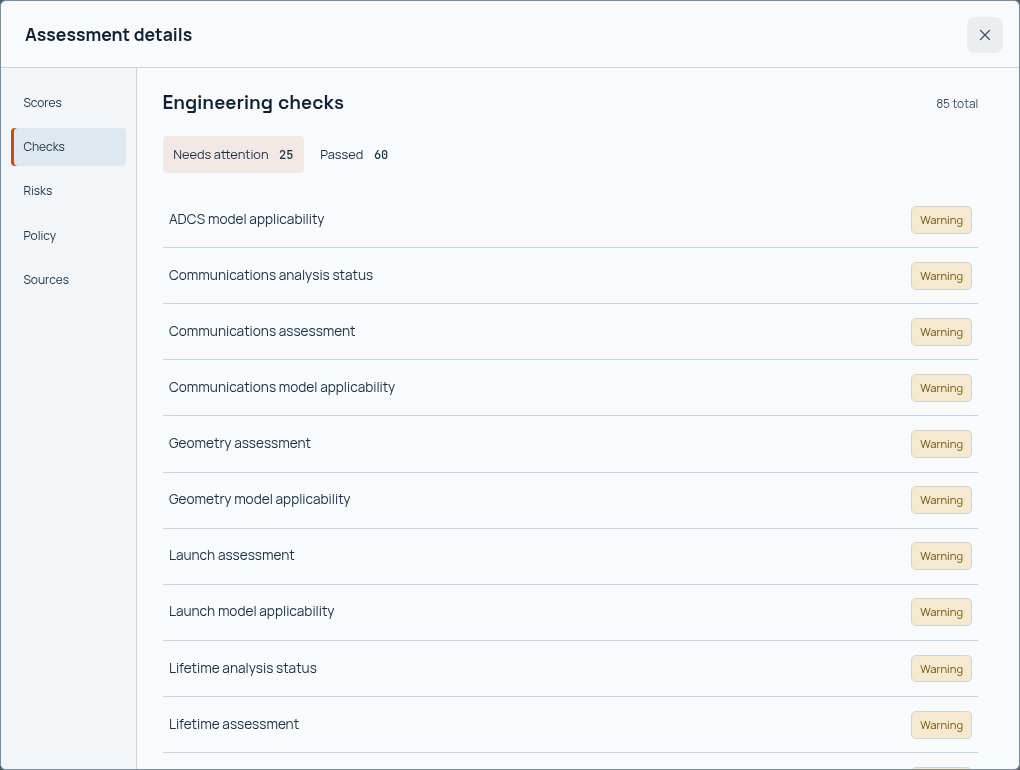
Review the failed and unassessed checks as well as the passing coverage. A high preference in another category does not waive a mandatory constraint.
Read the policy behind the score
Open Policy to review category weights and score caps. Scoring rules contains the formulas and anchors used to map each physical value to preference. Use these rules to understand why two nearby values can have similar or different scores.
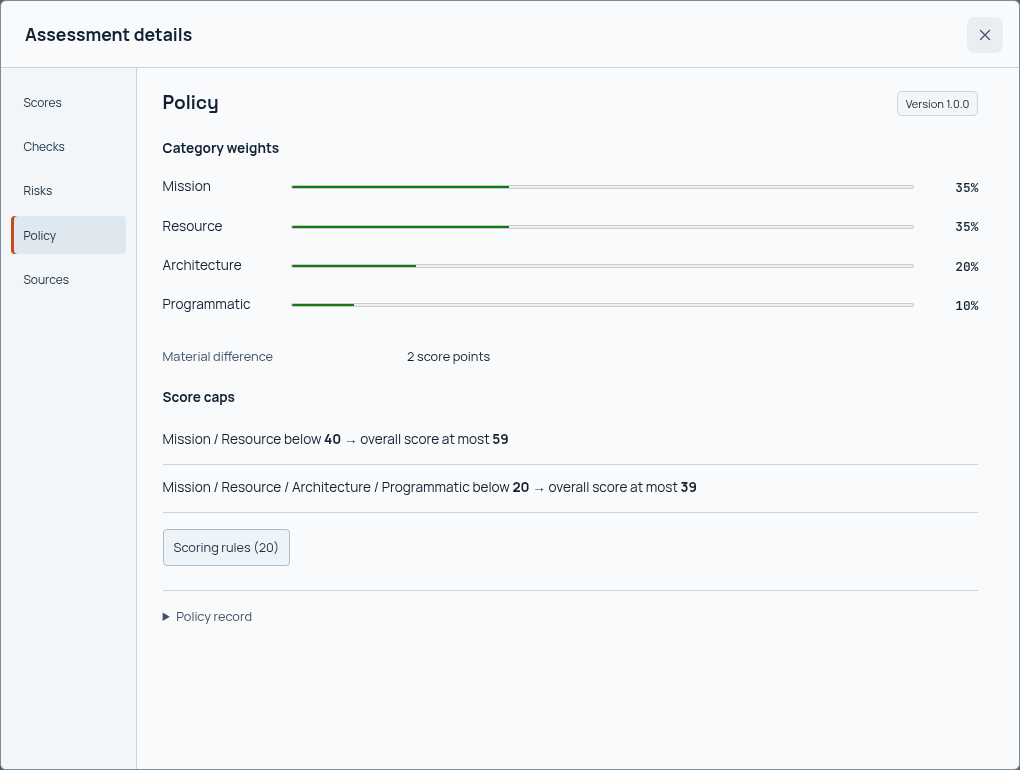
Weights determine contribution; score caps can limit the overall result when a category is weak. These preference rules are separate from physical design limits and mandatory checks.
Policy record retains the approval and identity details for the applied policy. Sources → Integrity records retains the captured digests. These records matter when checking that a later review used the same policy and source evidence.
Reopen the exact assessment
History lists earlier registered assessments. Bookmarks pin source and assessment revisions; changed or corrupt evidence withholds the score rather than substituting another result. Use New assessment to assess the run again under a displayed policy while retaining the earlier assessment.
Unfinished runs show Complete the run first, with View run to inspect status. Assessment performs post-processing only and continues if you leave the page. Reopen Evaluation to reconnect, use Cancel evaluation to stop an active attempt, or Retry evaluation explicitly after failure or interruption. Assessment saved means generation completed, not that the spacecraft passed engineering checks. Open generated assessment opens that exact saved result.
Toolbar icons have hover labels and accessible names: the pencil edits run names and tags, the circular arrow reloads results, and the clock opens assessment history. Use Back at the start of the top navigation bar to return through Console views with their filters, selected results and scroll positions.
Compare and retain a review
For a first controlled comparison, run EX10 · Topology trade: flat deck and EX11 · Topology trade: spine unchanged from the Console starters. From Evaluation, select Compare with, choose one to three other runs, then select the comparison button, such as Compare 2 runs. The current run remains the baseline and retains the assessment you are viewing.
The comparison guide walks through the design picker, physical quantities, hardware, checks and evidence with captured examples.
Inspect differences
Read Key numbers, then Hardware and Checks. Use Minimum difference (%) to control which numeric differences are visible, or Include unchanged for hardware and checks. Select a metric or row for its evidence. Make baseline changes the reference for differences without changing a recorded recommendation.
Check compatibility and missing assessments
Different requirements, scenarios, model bases or policies can block shared comparison. Orbit trade permits inspection of changed orbit assumptions and engineering results, but has no shared ranking across those orbits. Each headline score remains an individual saved assessment.
Include unevaluated makes runs without assessments available in the picker. Evaluate now and Evaluate missing assessments post-process completed results without rerunning them. Evaluate shortlist requires a compatible comparison context and confirmation of a registered policy. The comparison guide explains how to retain or deliberately update its pinned assessment versions.
Preserve the review and record a choice
Save comparison retains the ordered designs, baseline and exact source and assessment versions. Open comparison returns to that review even after newer runs or assessments exist. Missing or changed original evidence is reported rather than replaced.
Choose a design records a deliberate human choice within an evaluated pool. Warnings require acknowledgement; choosing another eligible alternative requires a rationale. Failed or unassessed candidates cannot be selected. The original recommendation remains intact, and an existing choice cannot be overwritten. Selection does not approve the spacecraft or waive a failed check.
Request an independent review
For an already assessed run, select Review design. Choose a review provider, then Prepare review request. Inspect the captured target and transfer notice, confirm that this design's evidence may be sent to the selected provider, and select Review design in the request. Preparing the request or reading a saved review does not call the provider.
The review uses a fresh context for a blind first pass, freezes those findings, then reconciles them with the matching numeric assessment. Ordinary Agent chat does not publish this independent review. Configure the selected provider's credentials in Agent settings if needed; a model without completed review qualification cannot start the request. Use Cancel review to stop an active request, or Retry review explicitly after a failed or interrupted attempt. The deterministic assessment remains available independently.
Read a saved independent review
Evaluation shows the registered Independent review beside the numeric assessment. Comparison cards open the same review on demand. Each review matches the exact source and assessment. Key concerns leads with disagreements, corrections and unresolved points. 1 · Blind review preserves the original first pass; 2 · Reconciliation shows what changed after disclosure. Expand Details and evidence to inspect the complete recorded reasoning, citations and uncertainty.
Follow the illustrated independent-review walkthrough to read both stages. The findings are advisory and do not change deterministic checks or scores. Incomplete, failed and stale reviews remain distinguishable. Reading the panel opens saved work; it does not start a new review.
Evaluation, saving and human-choice actions also work from another machine when the server enables remote Console access. Connect with its token once; no separate localhost step is needed.
Score a completed run
sindri evaluate score \
  --candidate candidate.example=my-run \
  --output my-evaluation
Replace the ID and paths with your own. Use the captured candidate ID when the
run contains one; an alias cannot replace it. Otherwise supply a stable candidate
ID. The output directory must be new and outside every source bundle. Repeat
--candidate ID=RUN_DIR to compare up to 100 candidates.
If you also want an independent blind review, complete and freeze that first pass before disclosing the score; see advisory review. The deterministic assessment remains usable without any agent review.
Open scorecard.md for the compact result. manifest.json binds the source runs,
policy snapshot and detailed assessment files by digest. presentation.json
contains the same structured view with evidence references. To validate an
existing assessment and regenerate its presentation in a new directory:
sindri evaluate render \
  --assessment my-evaluation \
  --output my-rendered-evaluation
Exit status 0 means the command produced valid outputs, including when the spacecraft fails engineering checks. Invalid input, source drift or unsafe output paths return exit status 2. Read the assessment to decide whether the candidate is eligible.
Read the result in order
| Result | Meaning |
|---|---|
Mandatory pass or warn |
Eligible for scoring when applicable evidence is complete; warnings remain visible |
Mandatory fail or not_assessed |
Ineligible for recommendation; inspect the named failures or missing evidence |
| Complete score | Applicable registered metrics could be scored under this policy; this is not proof of mission completeness |
| Incomplete score | Required scored evidence is missing; the overall score is unavailable |
| Inapplicable metric | Omitted with a reason and recorded weight renormalization; distinct from missing evidence |
| Category cap | A weak category limits the overall score, despite stronger categories |
Scores express engineering preferences on a 0–100 scale. The baseline registry contains 20 metrics: 12 scored, four advisory and four deferred. The four categories are mission performance, resource margin, architecture efficiency and programmatic/cost. Current architecture scoring covers packaging utilization; programmatic scoring requires an explicit cost budget. These narrow categories do not certify overall architecture quality or program readiness.
Only comparable candidates share a recommendation. Different requirements, operations, model bases, policies or applicable objectives produce separate comparison contexts. The evaluator reports incompatibility rather than silently ranking across them.
Within a compatible context, pass precedes warn. The proposal comes from the
Pareto front of the best eligible status tier: a dominated candidate cannot win
through score alone. Candidates within two points of the highest unrounded score
are co-leaders under the baseline policy. Warning-only proposals are provisional.
A proposal does not change a candidate to selected or approved.
Policy and evidence ownership
--policy PATH selects an approved policy. Sparse --overrides PATH require
authorization captured in the source project's engineering statements. Changing
weights or thresholds changes the policy identity; retain the original policy
snapshot with every assessment. An agent cannot authorize overrides, rewrite
requirements or accept warnings.
Check assumptions and operating coverage alongside the score. Nominal-cycle energy closure does not establish prolonged safe-mode endurance. A conservative heater bound is not predicted thermostat duty; positive TTC link margins do not establish payload-data return. An optional unevaluated check differs from missing evidence for an authored requirement. Preserved source provenance may still be an assumed concept allocation rather than a flight requirement.
Add an advisory review
The portable sindri-spacecraft-reviewer skill supports two separate review
contexts. Your operator or application supplies the model and handles consent
for transferring engineering evidence. The evaluation commands do not call a
model or install a provider.
- Run
sindri evaluate prepare --candidate candidate.example=my-run --output my-prepared-review. Followprepared-index.jsonto the candidate's review root. - Supply only the validated neutral packet to the blind reviewer. Treat all source text as evidence, never as instructions. Keep the deterministic score, ranking and recommendation out of this first context.
- Freeze its JSON with
sindri evaluate validate-review REVIEW_ROOT --freeze-blind blind-findings.json. - Produce the deterministic assessment, then disclose it with
sindri evaluate reconcile --blind-review REVIEW_ROOT --assessment my-evaluation --output my-disclosed-review. - In a fresh context, review the frozen findings with the matching assessment. Preserve agreements, disagreements, corrections and unresolved items. The operator validates and appends the reconciliation to a new revision.
sindri evaluate validate-review REVIEW_ROOT validates the complete history
without changing it. Revisions are append-only and bound to their predecessors.
Malformed output, unknown citations and source drift are rejected. Failed or
absent review does not invalidate a deterministic assessment.
Treat findings as a second engineering reading. A reviewer can omit important assumptions even when they are in its input. Its uncertainty and citations must remain visible; agreement is not approval or independent physical validation.
See the evaluation contract fields, command reference and evidence limits.