Investigate an engineering issue
Use Issues to turn a warning or failed check into a specific investigation: find the affected system, read the finding, inspect its evidence, then return to the calculation or design input that explains it. A run can finish successfully while its engineering results still need attention.
Start with a completed run. Keep its name visible throughout the investigation: the captured design may differ from the configuration you are editing now.
Find the issue that matters
- Open Needs review from Overview, or select Issues for the run.
- Choose an affected system, or keep All systems to review the whole design.
- Use Errors, Warnings or Info to narrow the list. All restores every severity.
- Select a finding and check what it concerns: a requirement, a calculation prerequisite, a model limitation or an input that needs attention.
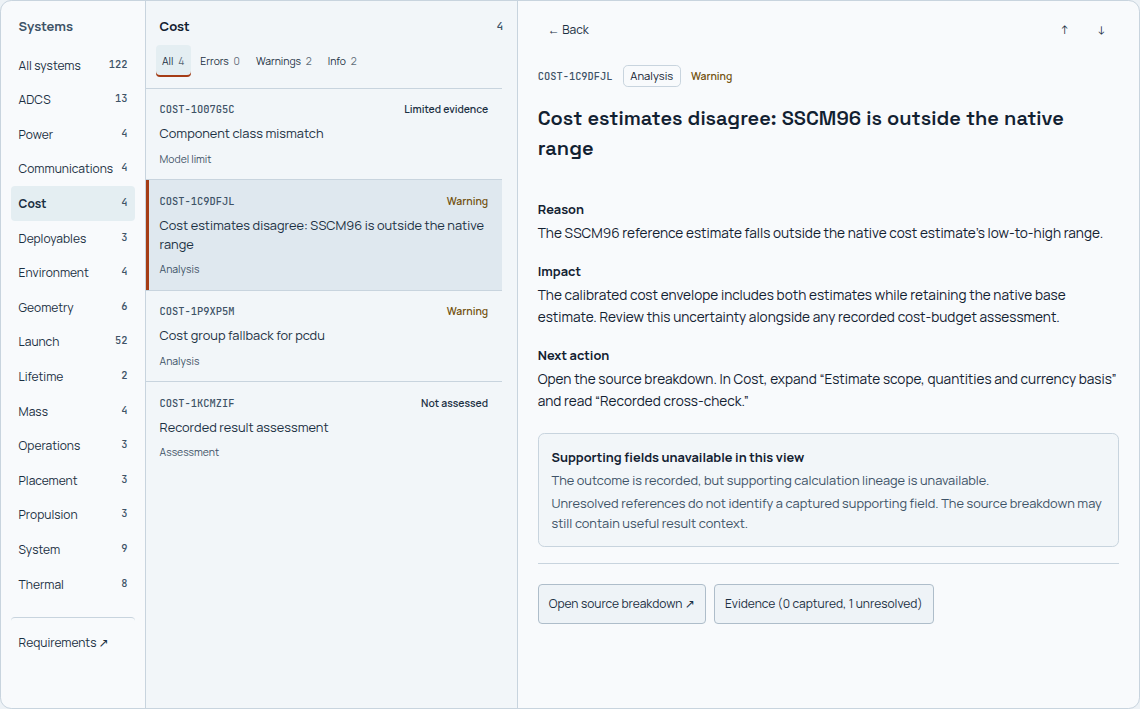
Severity helps prioritize the review. The finding and its evidence establish what happened and whether it affects the question you are trying to answer.
When you arrive from a result, the list can retain that result's component, scenario or mode context. Check the active context before concluding that no other issues exist; clear it to widen the review. The adjacent-finding controls let you work through the current selection without returning to the full list.
Read the finding before changing an input
The selected finding separates Reason, Impact and Next action. Read these together with the recorded values and limits. A cause suggested by a finding is a starting point for investigation; it is not evidence that a proposed change has already fixed the design.
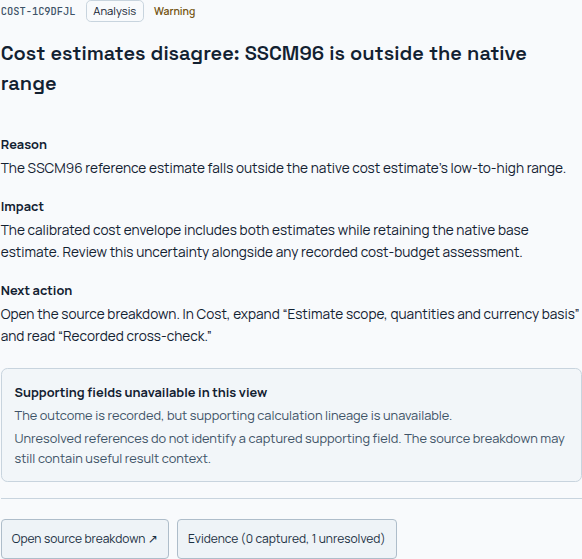
Start with the recorded condition and its consequence. Use the suggested next action to choose what to inspect or test next.
Some findings do not have a detailed explanation or impact recorded. Console shows that absence rather than adding an explanation. The compact display code helps with navigation; Evidence retains the original issue identifier and message when you need an exact reference.
A model-range warning also needs a different response from a failed requirement. For example, a cost cross-check outside its native range calls for review of the estimate basis and uncertainty. It does not, by itself, establish that the spacecraft exceeds its cost budget.
Compare a value with its recorded limit
You can inspect passing checks as well as problems. In Sizing and budgets → Thermal, choose Runtime cold, select Battery, then select Passed · Review finding in Inside battery. This opens the battery's recorded thermal check even though it does not appear in the ordinary list of issues needing attention.
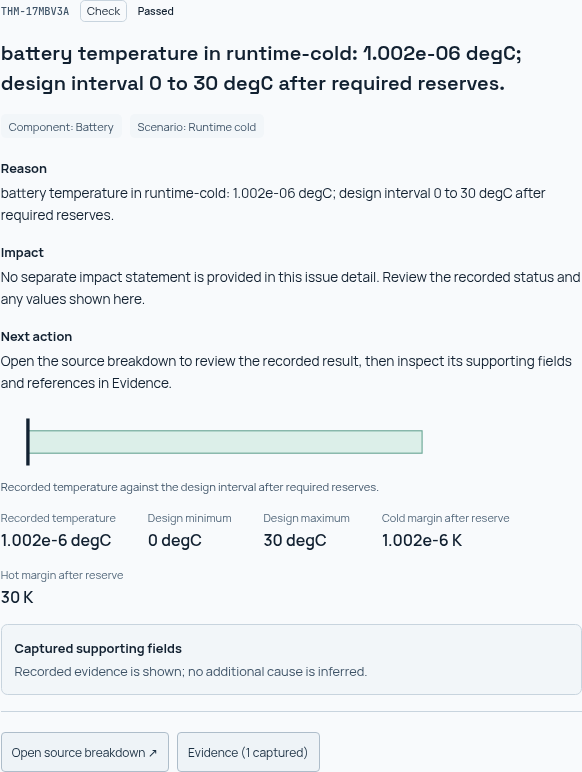
The interval represents the recorded design bounds after required reserves. It is not an uncertainty band or a prediction of every operating condition.
Here the recorded temperature is about 0.000001 °C, just above the 0 °C design minimum. The check passes, but that status does not imply a large cold margin. Read the recorded temperature and margins alongside the status.
Hot and cold extrema may describe different conditions. Compare each value with the corresponding component, scenario, mode and units. The range plot needs both design bounds and a recorded value. If any is unavailable, investigate the missing prerequisite before treating the check as a pass.
Inspect supporting evidence
Open Evidence on the finding. Its label reports how many references were captured and, when relevant, how many remain unresolved. Issue evidence shows the original message and the supporting references that are available.
For the thermal check above, Evidence (1 captured) opens the captured battery node balance for Runtime cold. The evidence identifies the result artifact and exact field supporting this finding.
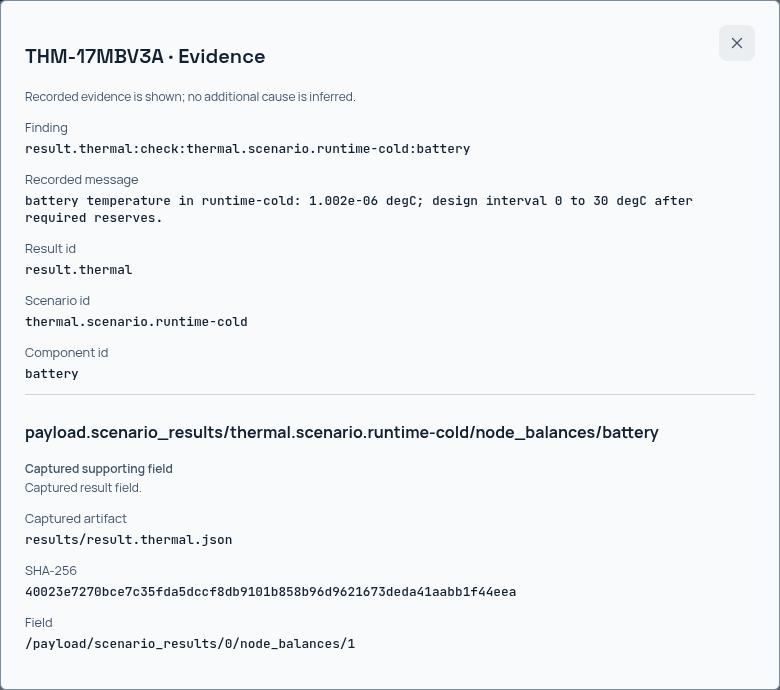
This reference resolves to a captured supporting field. Its component and scenario match the thermal check being reviewed.
The cost warning below has a different evidence state: 0 captured, 1 unresolved. You can read the original finding, but its reference does not resolve to a captured supporting field in this view. Return to the source breakdown for any available calculation context and retain the evidence gap in your conclusion.
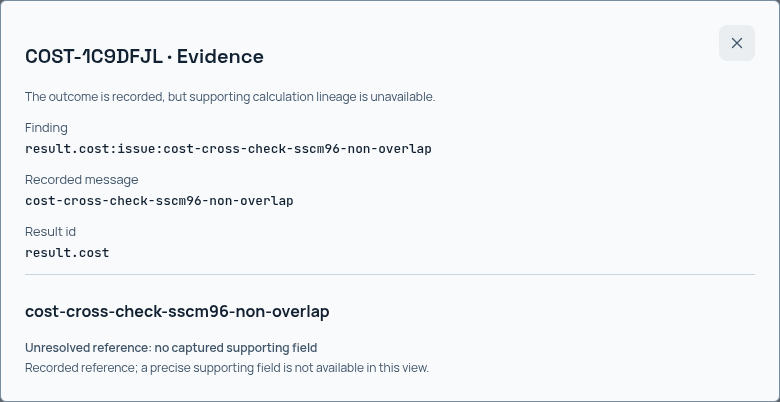
An unresolved reference identifies an evidence gap. It does not represent a zero cost, a passing check or a captured explanation of the cause.
Use the evidence to distinguish the first missing input from its downstream effects. The EX05 diagnosed failure, for example, isolates one insufficient launcher width while retaining complete mass and placement evidence. Several visible findings can arise from one constraint or unresolved prerequisite. Retain that dependency when explaining the result, and do not claim a repair until a new run verifies it.
Return to the source breakdown
Choose Open source breakdown ↗ to inspect the result that produced the finding. Read the calculation breakdown and the captured Design used before deciding which authored input to change.
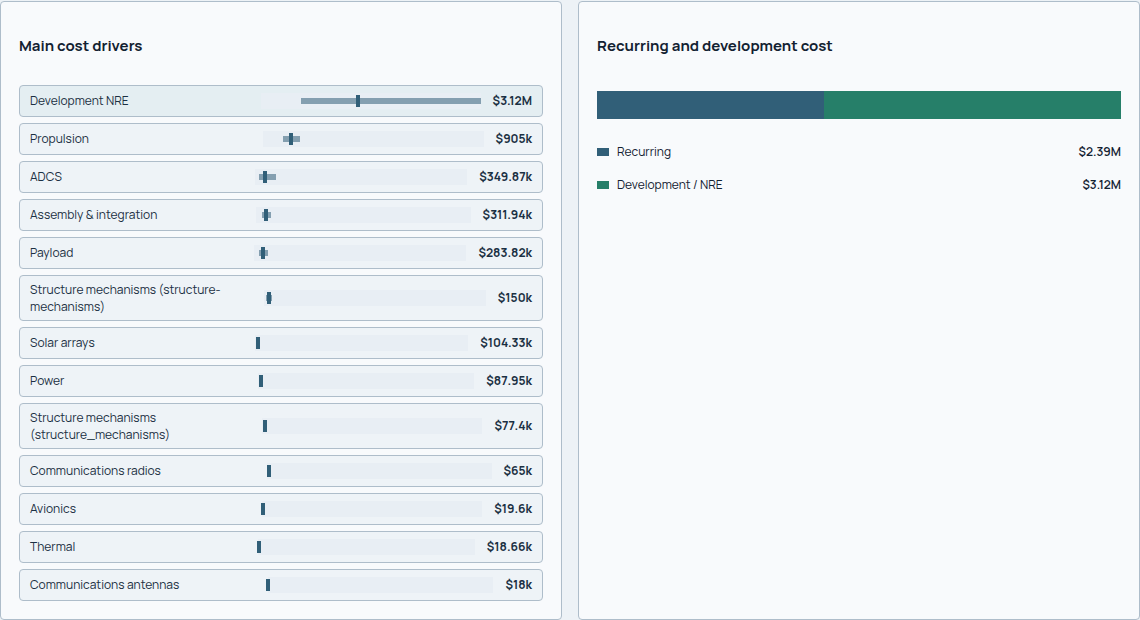
The source breakdown provides the engineering context that a short finding cannot carry on its own.
Use Back to return to the investigation with its selection and filters. A source that is unavailable remains unavailable; another result is not a substitute for the missing reference.
Requirements retains requirement coverage and authored statements, including passing checks. The Issues list is useful for investigation but is not a complete requirement-verification record.
Finish with a reviewable conclusion
Record the run and finding, the controlling value or missing prerequisite, and the change you intend to test. Separate what the evidence establishes from your explanation of its cause.
Edit the project and run a new candidate when a change is needed. Then compare the designs, checking both the original issue and any consequences elsewhere. The design agent can help interpret the evidence and propose an input change; reading its answer or editing the current project does not alter the finding in the saved run.